Save Energy Save Money Lower your Bills

Find the most efficient products
Quickly find and compare the most energy efficient products and models available in the United States

See the TrueCost of products
How much does a product really cost? We show you, by combining the sticker price and the running costs

The Best-loved Best Sellers
We analyse sales figures, user reviews and feedback to let you know which products people love.
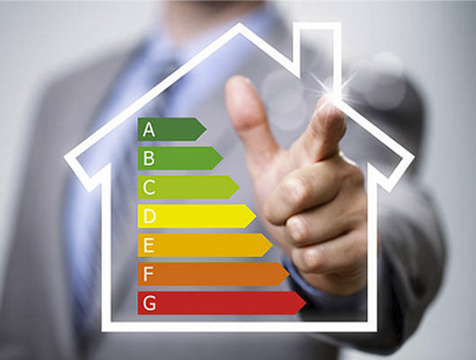
EnergyBoom is a website dedicated to helping Americans save both money and energy by finding the most efficient consumer products available.
With energy costs continuing to rise and concerns about our impact on the environment growing, our goal is to help make it easier than ever for people to save money, reduce their bills and their environmental footprint at the same time.
Who knew - Helping save the planet could help you save Money?
Among the first categories we will be covering is humidifers for babies. Many parents consider humidifiers to be an essential item, especially in heated houses and during the cold and flu season. Take a look at our review of both cool mist and warm mist options, and find out which will save you both money and energy over time.
New Energyboom Categories are currently being created & will be live soon.



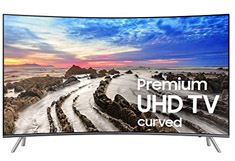
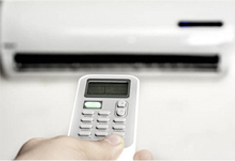
COMING SOON
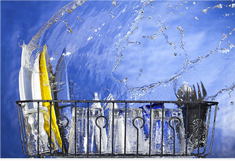
Dishwashers
COMING SOON
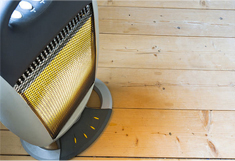
Electric Heaters
COMING SOON

Monitors
COMING SOON
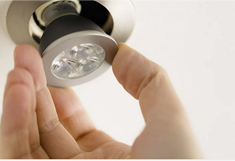
LED Lighting
COMING SOON
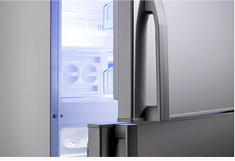
Freezers
COMING SOON
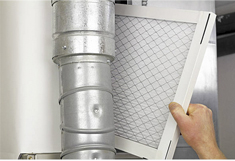
Furnaces
COMING SOON

Tablets
COMING SOON
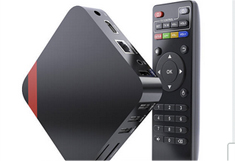
Set-Top Boxes
COMING SOON
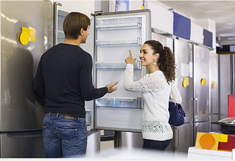
Refrigerators
COMING SOON
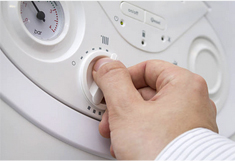
Gas Heaters
COMING SOON

Telephones
COMING SOON

Home Theatre

Did you Know?
More than 45% of US Households now purchase ENERGY STAR certified products -and for good reason. Each product, appliance, item, building, or home with this rating has been independently certified to use less energy and cause fewer of the emissions that contribute to climate change. Surveys show that 88% of households recognise label, and 77% of purchasers claimed the presence of an energy efficiency certification influenced their purchasing decision.
Our goal is to do our bit to help raise those numbers, and lower people's bills at the same time.
